Multiple AI models, one chat: what to look for
A useful multi-model workspace does more than put several model names in a menu. It helps you keep working when the task, the model or the available connection changes.
Read the guideUpload a photo, PDF, TXT or CSV. Selected files go with your message and remain available for follow-up questions until you uncheck them.
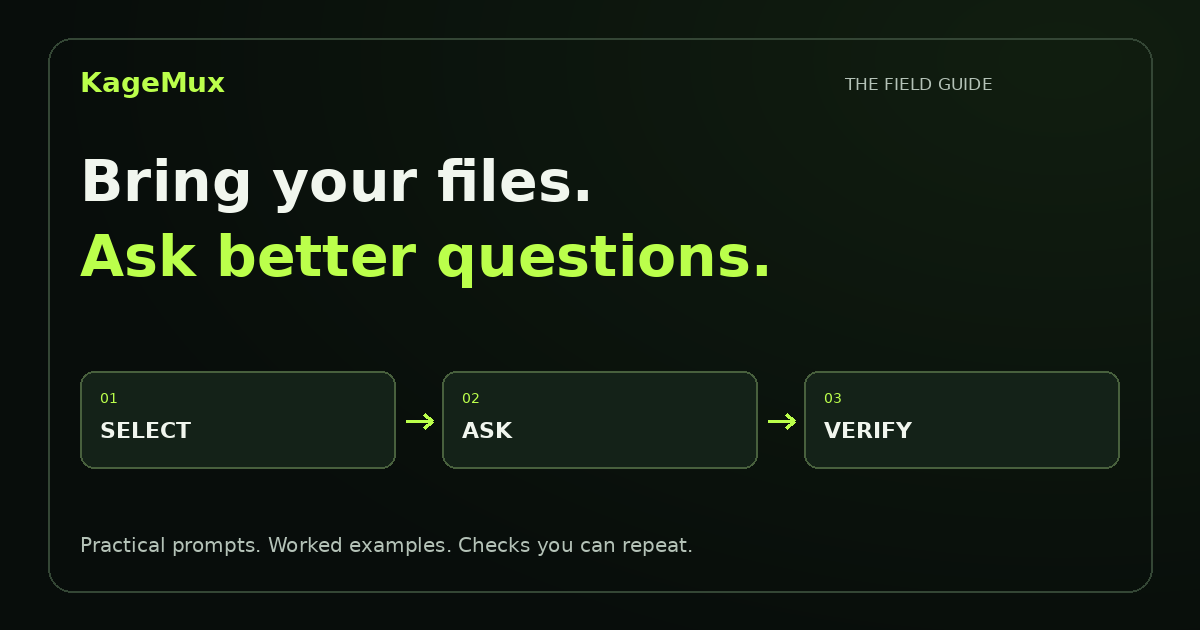
Selected files use the included Qwen Vision route. Uploading or typing alone does not generate an answer. Your selected files remain available for follow-up messages in that conversation, including after a page refresh. To stop including a file, uncheck Keep in this chat; the saved upload stays in the conversation.
| Type | What to prepare |
|---|---|
| PNG, JPEG, WebP | A clear photo or screenshot with readable details. |
| A readable, unencrypted document with selectable text. | |
| TXT | The relevant text, without unrelated logs or secrets. |
| CSV | A small, well-labelled table with units and column names. |
Each file can be up to 5 MiB. You can upload up to five files at a time and select up to three saved files for one message. PDF text extraction covers the first ten pages; long text can be shortened. Scanned, encrypted or unreadable PDFs may not provide usable extracted text. These are the current product limits, not a claim that every provider supports the same formats.
For a CSV, try: “List the column names, calculate the total in the Amount column and explain how you handled blank cells.” Check the result against the original table or a spreadsheet formula. An AI explanation is useful, but it is not a substitute for verifying a calculation.
For a PDF, try: “Summarize the stated deadline and deliverables from the first ten pages. Quote a short identifying phrase for each and say when a detail is missing.” Do not assume the model has read pages beyond the extraction limit.
For a photo, try: “Describe the visible objects and transcribe the readable label. Separate what you can see from what you infer.” A cropped or blurred detail should be treated as uncertain, especially when a wrong interpretation would matter.
Open Files in this chat and check Keep in this chat for the file you want to use. The model selector should show Qwen Vision. A saved file that is unchecked is not included in new messages. If the file or its analysis cannot be confirmed, check the status message and refresh the saved-files list.
Open Files in this chat and uncheck Keep in this chat. The upload stays saved for later use. Choose Remove when you want to delete it from the conversation.
The current extractor reads up to the first ten pages. Make a smaller, relevant document or provide the needed passage as text. Check that the extracted material includes the section you want analyzed.
Refresh the saved-files list before retrying so you can see whether a file was already saved. Check the format and size, then upload a smaller set if needed.
Uncheck active files before switching to your personal API key or another model service. To use those saved files again, return to Included models and select Keep in this chat; KageMux chooses Qwen Vision.
Use a relevant extract instead of uploading an entire confidential archive, and read the privacy information. Selected images or extracted document text are sent to OVHcloud Qwen Vision with your messages. A file should contain the material you want analyzed, not instructions that override your request or authorize unrelated actions.
You can use the saved-files controls to download or remove a file. If the answer affects money, health, legal rights or another consequential decision, verify the important facts with the original document and an appropriate qualified source.
For a longer project, record the confirmed conclusions in a short project brief and keep a link or reference to the original material.